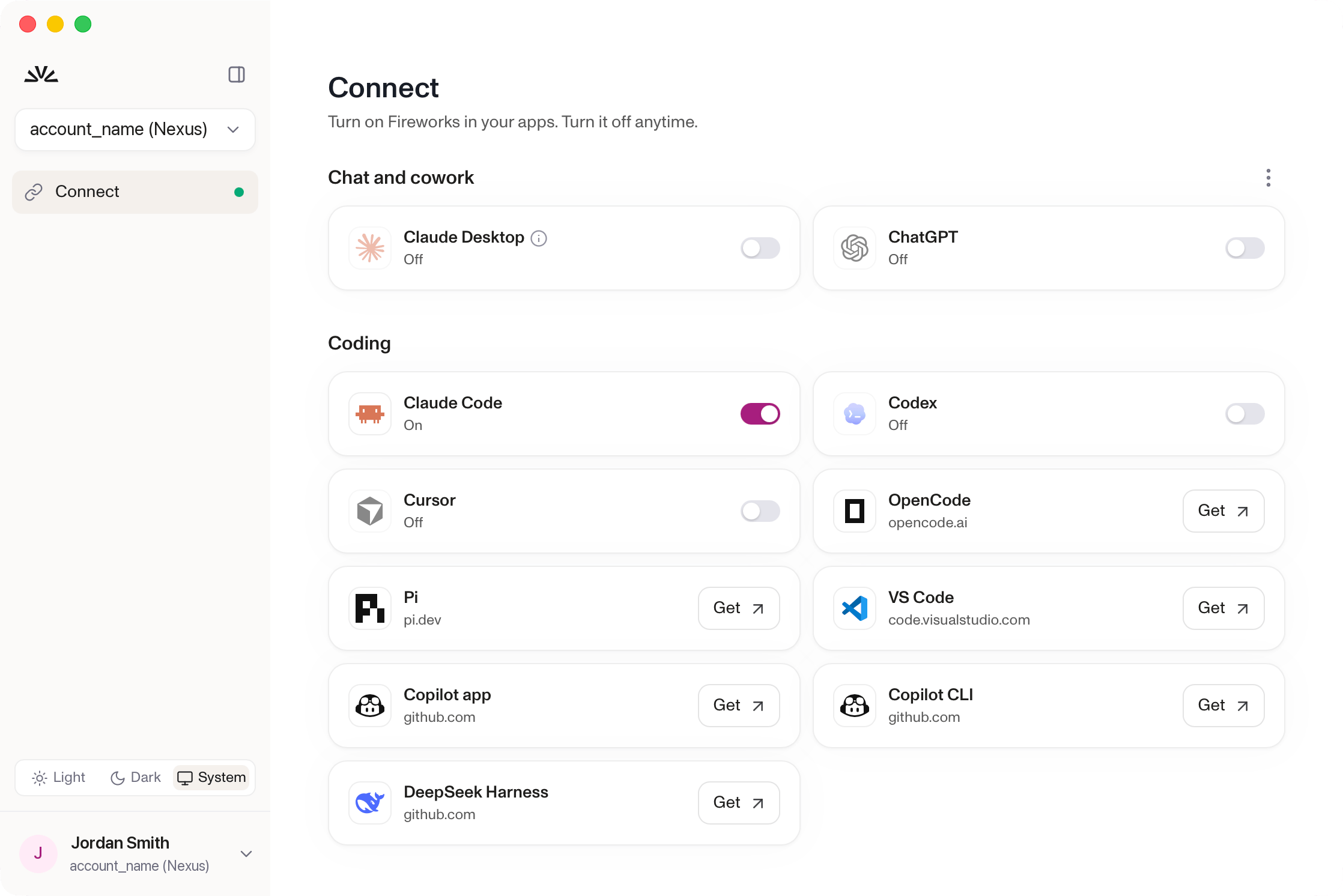
Download Nexus Desktop for macOS and connect Claude Code, ChatGPT, Codex, Cursor, and your other AI tools to Nexus Auto with one switch, no terminal needed.
Nexus Desktop connects the same tools as the Nexus CLI, including Claude Code, ChatGPT, Codex, Cursor IDE, VS Code, OpenCode, Pi, Copilot, and DeepSeek Harness. Claude Desktop has limited support. What works in each tool is listed in Harness support.
Nexus Desktop: a desktop app that requires no command line. It runs on macOS. Linux and Windows support is coming soon.
Nexus CLI: a command-line tool for developers and scripted setups. It runs on macOS and Linux. Windows support is limited: install and run it from Git Bash.
You can use both. They read the same settings, so a tool you turn on in one shows as on in the other.
Was this page helpful?
⌘I
Assistant
Responses are generated using AI and may contain mistakes.