> ## Documentation Index
> Fetch the complete documentation index at: https://docs.fireworks.ai/llms.txt
> Use this file to discover all available pages before exploring further.
> ## Agent Instructions
> For Fireworks Nexus, start at https://docs.fireworks.ai/nexus.
> Use https://docs.fireworks.ai/nexus/quickstart for coding harnesses, custom agents, APIs, SDKs, and LLM gateways.
> Use https://docs.fireworks.ai/nexus/firerouter for model router types, composition, and pricing.
> Prefer canonical short model IDs such as firerouter/opus. In LiteLLM, use the fireworks_ai/ provider prefix.
> Family names such as opus track the latest evaluated family version; do not describe them as fixed model versions.
# Amazon Bedrock
> Connect a Bedrock API key so FireRouter can call supported models with credentials from your AWS account.
An Amazon Bedrock Provider Key lets FireRouter use an API key from your AWS account for supported models. Fireworks stores the key securely and never returns its full value. Bedrock usage and charges remain in your AWS account.
Bedrock uses the same account-admin workflow as Anthropic and OpenAI, but each model also needs a Bedrock model ID and region. See Provider Keys for shared states, rotation, and security.
Before setup, confirm that your AWS account can invoke every model you plan to add. Some third-party or restricted models require explicit Bedrock model access, a Marketplace agreement, or approval from AWS or the model provider. Anthropic may also require a one-time use-case form.
## Supported models
| Model | Served model ID | Example Bedrock Runtime model ID | AWS reference |
| --------------- | ----------------- | --------------------------------------------------- | ------------------------------------------------------------------------------------------------------------------------------------------------------------------------------------------------------------------------------------------------------------------------------------------------------------------------------------------------------------------------------------------------ |
| Claude Opus 5 | `claude-opus-5` | `global.anthropic.claude-opus-5` | Model ID · Regions |
| Claude Opus 5.5 | `claude-opus-5-5` | `global.anthropic.claude-opus-5-5` | Model ID · Regions |
| GPT-5.6 Sol | `gpt-5.6-sol` | `global.openai.gpt-5.6-sol` | Model ID · Regions |
| GPT-6 Sol | `gpt-6-sol` | `global.openai.gpt-6-sol` (confirm in your account) | AWS launch announcement. AWS has not yet published a model card for this model. |
| GPT-6 Astra | `gpt-6-astra` | `global.openai.gpt-6-astra` | Model ID · Regions |
Where each column is used:
* **Model:** the name shown in the dashboard model picker. You select it; you never type an ID.
* **Served model ID:** the ID in the response `model` field, such as `claude-opus-5-5`. Your application still sends a router slug such as `firerouter/claude-opus-5-5`. `firectl` uses the served ID as `routes[].firerouter_model_id`. You do not type it in the dashboard.
* **Bedrock model ID:** the AWS identifier. Copy it exactly from AWS. Paste it into each route's **Model ID** field, or set `routes[].bedrock.model_id`. Any geo/global profile or ARN that AWS lists for the model also works, as long as your region can invoke it.
* **Region:** the AWS source region. In Fireworks, select it in each route's **Region** field, or set `routes[].bedrock.aws_region`. The supported regions are `us-east-1`, `us-east-2`, `us-west-1`, and `us-west-2`.
## Prepare AWS
Do this once, regardless of which setup path you use.
1. In the AWS account that will pay for inference, request or verify access to each model.
* For Anthropic models, complete the one-time use-case form and Marketplace agreement if AWS requires them.
* For restricted models, complete any additional AWS/provider approval before continuing.
* Confirm that the API key can invoke the selected model or inference profile.
2. Generate the key: Amazon Bedrock console → **API keys** → copy the key. See Generate an Amazon Bedrock API key.
Fireworks accepts a Bedrock bearer API key, not an IAM role or SigV4 credentials. Short-term keys are valid only in the Region where they were generated and for at most 12 hours, and Fireworks does not refresh them. Use a long-term key.
## Connect in the dashboard
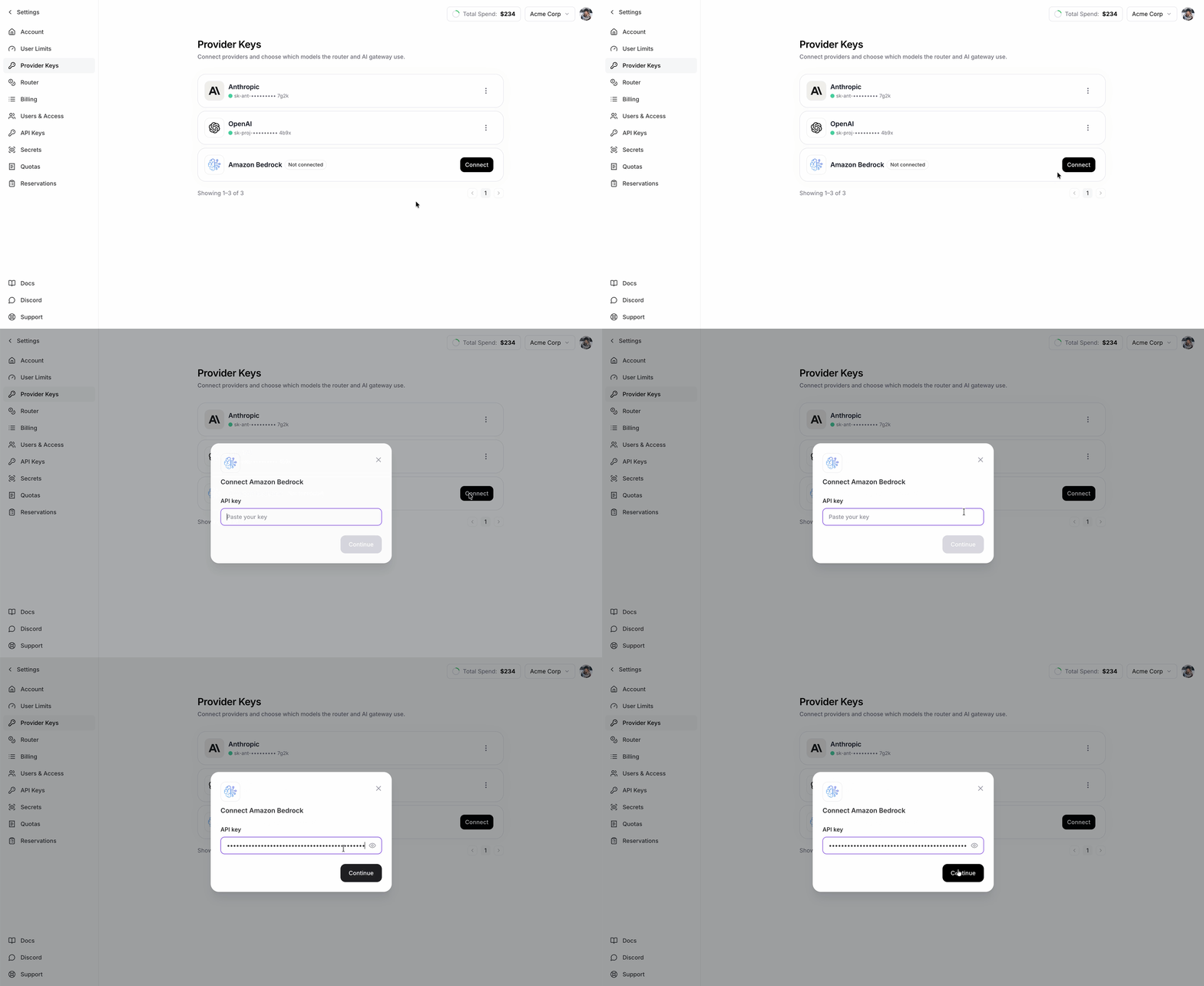
Open **Settings → Provider Keys**. On the **Amazon Bedrock** row, click **Connect**, then paste your Bedrock key into **API key** and click **Continue**.
 In **Add models to Amazon Bedrock**, select the models that should use this key, then click **Connect**. You must select at least one.
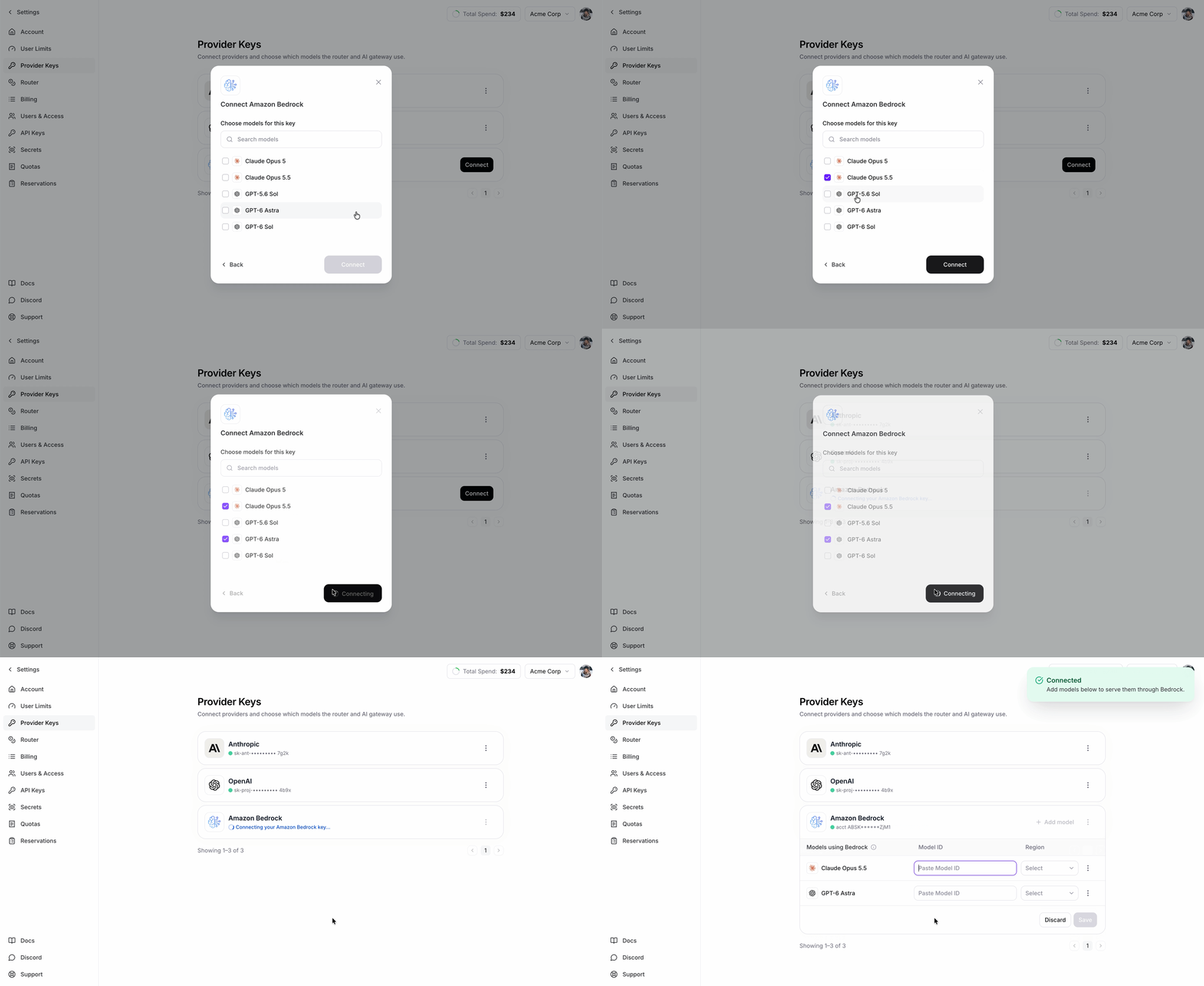 The card shows **Connecting** while the binding propagates. This usually finishes within 30–60 seconds.
Connecting stores the key but does not route any traffic yet. Once the card is connected, the models you picked appear as empty rows that you must complete.
1. For each row under **Models using Bedrock**, paste the AWS **Model ID** and select a **Region**.
2. Click **Save**. Save stays disabled until every row has both values.
The card shows **Connecting** while the binding propagates. This usually finishes within 30–60 seconds.
Connecting stores the key but does not route any traffic yet. Once the card is connected, the models you picked appear as empty rows that you must complete.
1. For each row under **Models using Bedrock**, paste the AWS **Model ID** and select a **Region**.
2. Click **Save**. Save stays disabled until every row has both values.
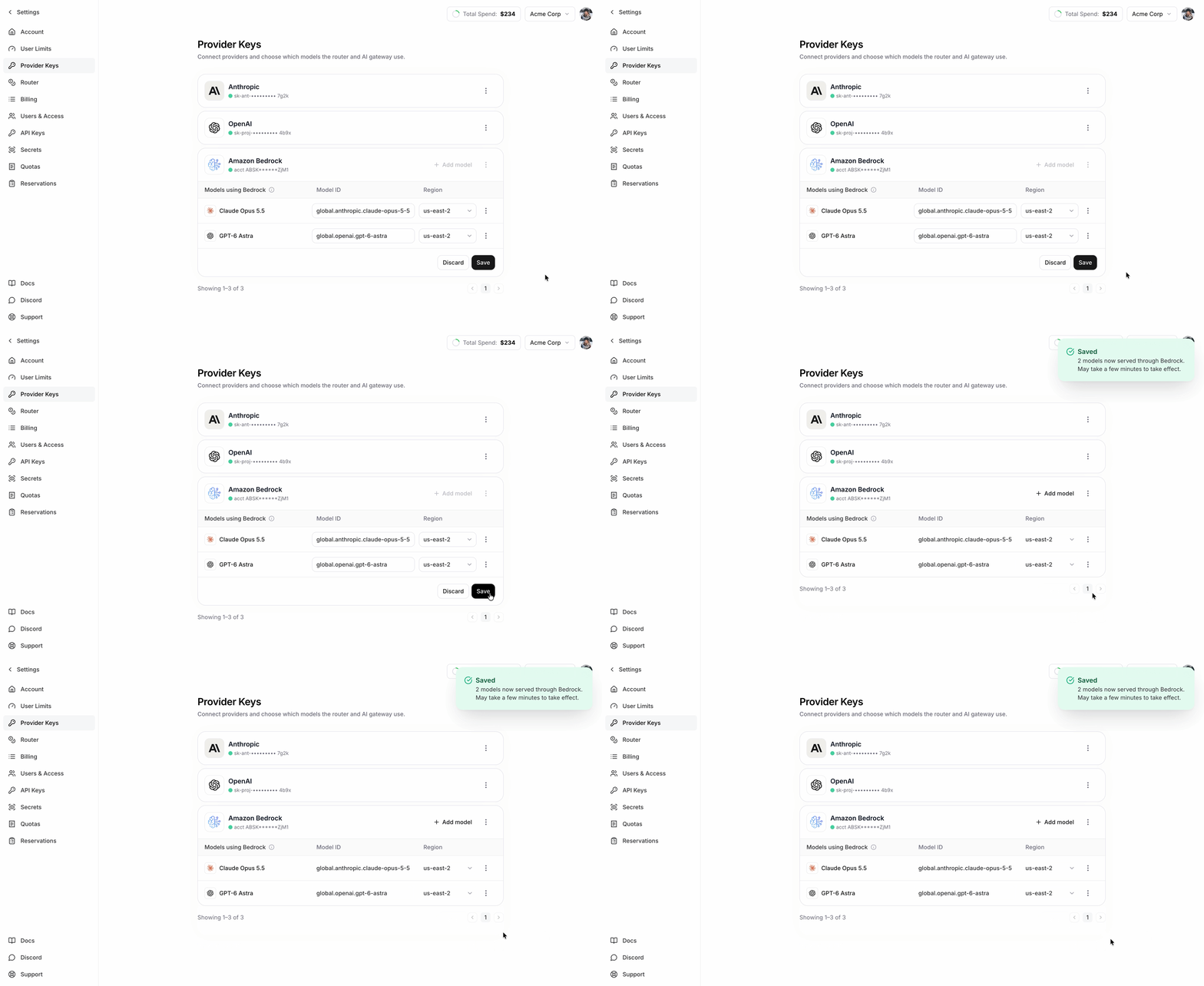 After saving, each row displays its Model ID and Region. Traffic for those models is now billed to your AWS account. Every other model keeps its current provider.
### Change model routes later
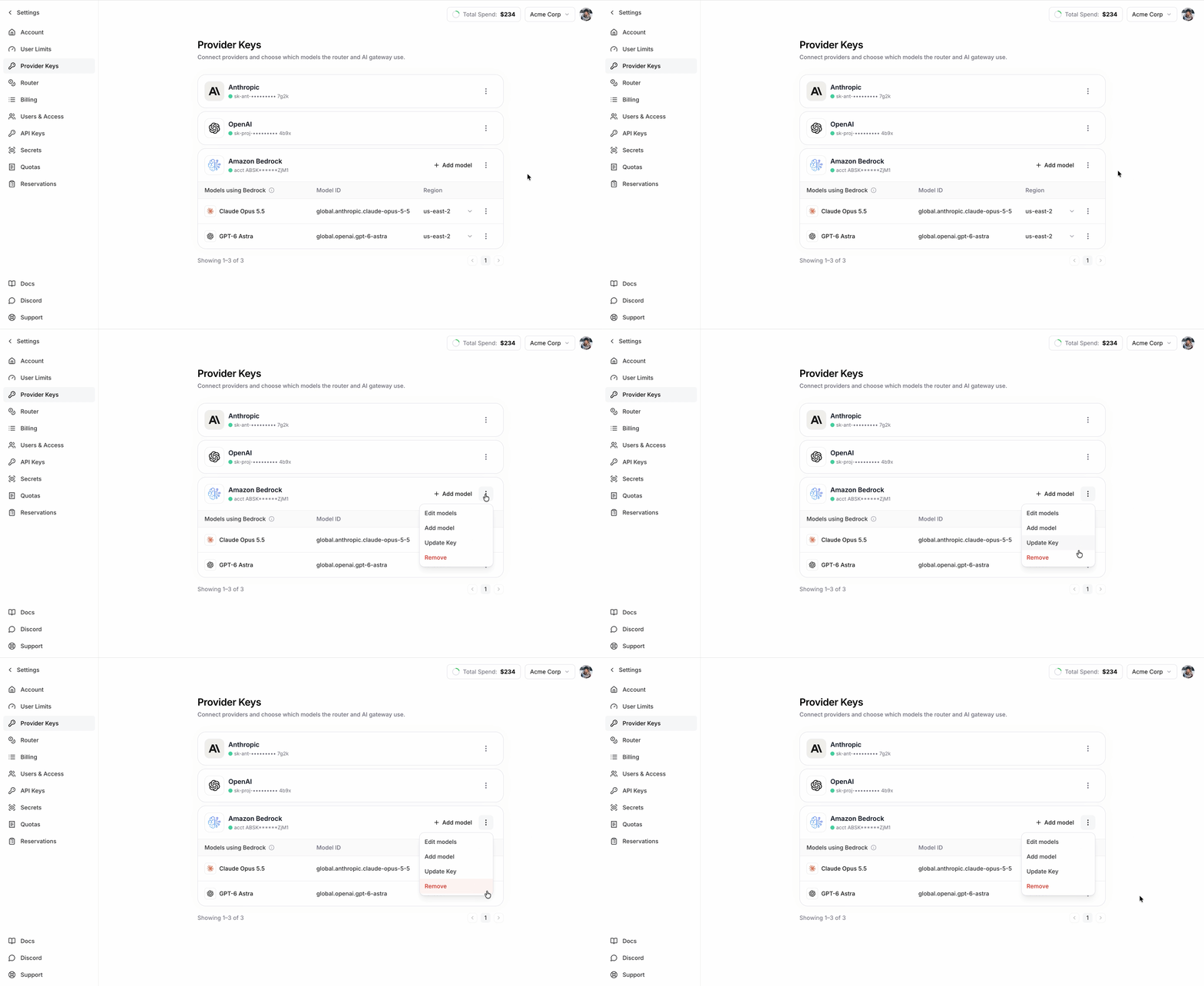
Use **Add model** or the trash icon on a row to add or remove models. Use **Edit models** to change the Model ID or Region of existing rows. Then click **Save**.
Use **Update Key** to replace the key value without changing the routes. This is the **Replace** action described in Provider Keys. Use **Remove** to delete the Bedrock key and all of its routes.
After saving, each row displays its Model ID and Region. Traffic for those models is now billed to your AWS account. Every other model keeps its current provider.
### Change model routes later
Use **Add model** or the trash icon on a row to add or remove models. Use **Edit models** to change the Model ID or Region of existing rows. Then click **Save**.
Use **Update Key** to replace the key value without changing the routes. This is the **Replace** action described in Provider Keys. Use **Remove** to delete the Bedrock key and all of its routes.
 ## Manage with `firectl`
### Upload the key
Save the bearer key to a local file, then upload it with `--from-file`. This keeps the key out of your shell history and process list. See Manage keys with `firectl`.
```bash wrap theme={null}
firectl provider-key upload \
--provider-type bedrock \
--from-file ./bedrock.key \
--display-name production-bedrock
```
Save the returned key ID as `KEY_ID`, then delete the local file. `upload` only stores the key; it does not route traffic.
### Write the routes file
Create `routes.json`. Each entry maps one FireRouter model to one Bedrock region and model ID. The file holds only model and region values, not the key.
```json theme={null}
{
"routes": [
{
"firerouter_model_id": "claude-opus-5-5",
"bedrock": {
"aws_region": "us-east-1",
"model_id": "global.anthropic.claude-opus-5-5"
}
},
{
"firerouter_model_id": "gpt-5.6-sol",
"bedrock": {
"aws_region": "us-east-1",
"model_id": "global.openai.gpt-5.6-sol"
}
}
]
}
```
Rules:
* Use only the served model IDs in Supported models.
* Each model appears once and maps to one `(aws_region, model_id)` target.
* Copy `model_id` exactly from AWS; geo/global prefixes and ARNs are significant.
### Bind the key and routes
```bash wrap theme={null}
firectl provider-key-binding bind \
bedrock KEY_ID \
--routes-file ./routes.json
```
* **Always pass the complete route file.** Every bind replaces the whole route set; omitted routes are deleted.
* **Confirm removed routes.** If a bind removes routes, `firectl` asks for confirmation. Pass `--yes` to skip the prompt.
Confirm both the state and the route list. `CONNECTED` with empty `routes` serves no Bedrock traffic. Before the first bind, `get` returns `NOT_FOUND`.
```bash wrap theme={null}
firectl provider-key-binding get bedrock -o json
```
Unbind and delete are the same as other providers. See Delete a key.
## Troubleshooting
* **Access denied / unauthorized:** check model access, Marketplace or provider approval, key permissions, and key expiration in the same AWS account. Expiring or revoking the key in AWS does not change the Fireworks state. Upload and bind a replacement.
* **Model not found:** copy the exact model or profile ID from AWS. Never derive it from the served model ID.
* **Region unavailable:** confirm the region can invoke that exact inference profile.
* **Save button stays disabled (dashboard):** a row is missing its Model ID or Region.
* **A route disappeared (`firectl`):** every bind replaces the whole route set. Include all routes you want to keep.
* **Connected but traffic does not reach Bedrock:** confirm the route list is not empty and that requests use a route containing one of the configured served model IDs.
## Manage with `firectl`
### Upload the key
Save the bearer key to a local file, then upload it with `--from-file`. This keeps the key out of your shell history and process list. See Manage keys with `firectl`.
```bash wrap theme={null}
firectl provider-key upload \
--provider-type bedrock \
--from-file ./bedrock.key \
--display-name production-bedrock
```
Save the returned key ID as `KEY_ID`, then delete the local file. `upload` only stores the key; it does not route traffic.
### Write the routes file
Create `routes.json`. Each entry maps one FireRouter model to one Bedrock region and model ID. The file holds only model and region values, not the key.
```json theme={null}
{
"routes": [
{
"firerouter_model_id": "claude-opus-5-5",
"bedrock": {
"aws_region": "us-east-1",
"model_id": "global.anthropic.claude-opus-5-5"
}
},
{
"firerouter_model_id": "gpt-5.6-sol",
"bedrock": {
"aws_region": "us-east-1",
"model_id": "global.openai.gpt-5.6-sol"
}
}
]
}
```
Rules:
* Use only the served model IDs in Supported models.
* Each model appears once and maps to one `(aws_region, model_id)` target.
* Copy `model_id` exactly from AWS; geo/global prefixes and ARNs are significant.
### Bind the key and routes
```bash wrap theme={null}
firectl provider-key-binding bind \
bedrock KEY_ID \
--routes-file ./routes.json
```
* **Always pass the complete route file.** Every bind replaces the whole route set; omitted routes are deleted.
* **Confirm removed routes.** If a bind removes routes, `firectl` asks for confirmation. Pass `--yes` to skip the prompt.
Confirm both the state and the route list. `CONNECTED` with empty `routes` serves no Bedrock traffic. Before the first bind, `get` returns `NOT_FOUND`.
```bash wrap theme={null}
firectl provider-key-binding get bedrock -o json
```
Unbind and delete are the same as other providers. See Delete a key.
## Troubleshooting
* **Access denied / unauthorized:** check model access, Marketplace or provider approval, key permissions, and key expiration in the same AWS account. Expiring or revoking the key in AWS does not change the Fireworks state. Upload and bind a replacement.
* **Model not found:** copy the exact model or profile ID from AWS. Never derive it from the served model ID.
* **Region unavailable:** confirm the region can invoke that exact inference profile.
* **Save button stays disabled (dashboard):** a row is missing its Model ID or Region.
* **A route disappeared (`firectl`):** every bind replaces the whole route set. Include all routes you want to keep.
* **Connected but traffic does not reach Bedrock:** confirm the route list is not empty and that requests use a route containing one of the configured served model IDs.