> ## Documentation Index
> Fetch the complete documentation index at: https://docs.fireworks.ai/llms.txt
> Use this file to discover all available pages before exploring further.
> ## Agent Instructions
> For Fireworks Nexus, start at https://docs.fireworks.ai/nexus.
> Use https://docs.fireworks.ai/nexus/quickstart for coding harnesses, custom agents, APIs, SDKs, and LLM gateways.
> Use https://docs.fireworks.ai/ecosystem/firerouter/overview for model router types, composition, and pricing.
> Prefer canonical short model IDs such as firerouter/opus. In LiteLLM, use the fireworks_ai/ provider prefix.
> Family names such as opus track the latest evaluated family version; do not describe them as fixed model versions.
# Provider Keys
> Connect an account-level Anthropic or OpenAI Provider Key once so model routers can call closed families without developers sending the key.
Connect an account-level Anthropic or OpenAI Provider Key once to let model routers call closed models. After that, developers authenticate with only their Fireworks API key. When a router selects a closed model, Fireworks sends the request with the stored provider credential.
FireConnect configures the developer's Fireworks credential through `fireconnect login`. The provider key stays with the account, so it is never distributed to developers or pasted into a chat. Fireworks encrypts it at rest and never shows it in full again.
**Admin:** connect the provider key once. **Developer:** run
`fireconnect login`. **Request:** send only the Fireworks API key.
Router availability in FireConnect varies by harness. See
[Harness Compatibility](/nexus/harness-compatibility) for current support.
Provider Keys is an account-admin-only feature. You must be an account admin
to connect, replace, or remove a key, whether from the dashboard or through
`firectl`.
## Check provider support and connection states
* **Providers:** You can connect Anthropic and OpenAI in the dashboard. The API and `firectl` also accept Grok and Bedrock when enabled for your account.
* **One active key per provider:** You can upload several keys for one provider, but only one can be active for routing at a time.
Each provider is always in one of these states:
| State | What it means |
| ----------------- | ------------------------------------------------------ |
| **Connected** | The key is active for router requests to that provider |
| **Connecting** | A new binding is propagating |
| **Disconnecting** | A binding removal is propagating |
| **Not connected** | No key is set for this provider. |
## Connect a key in the dashboard
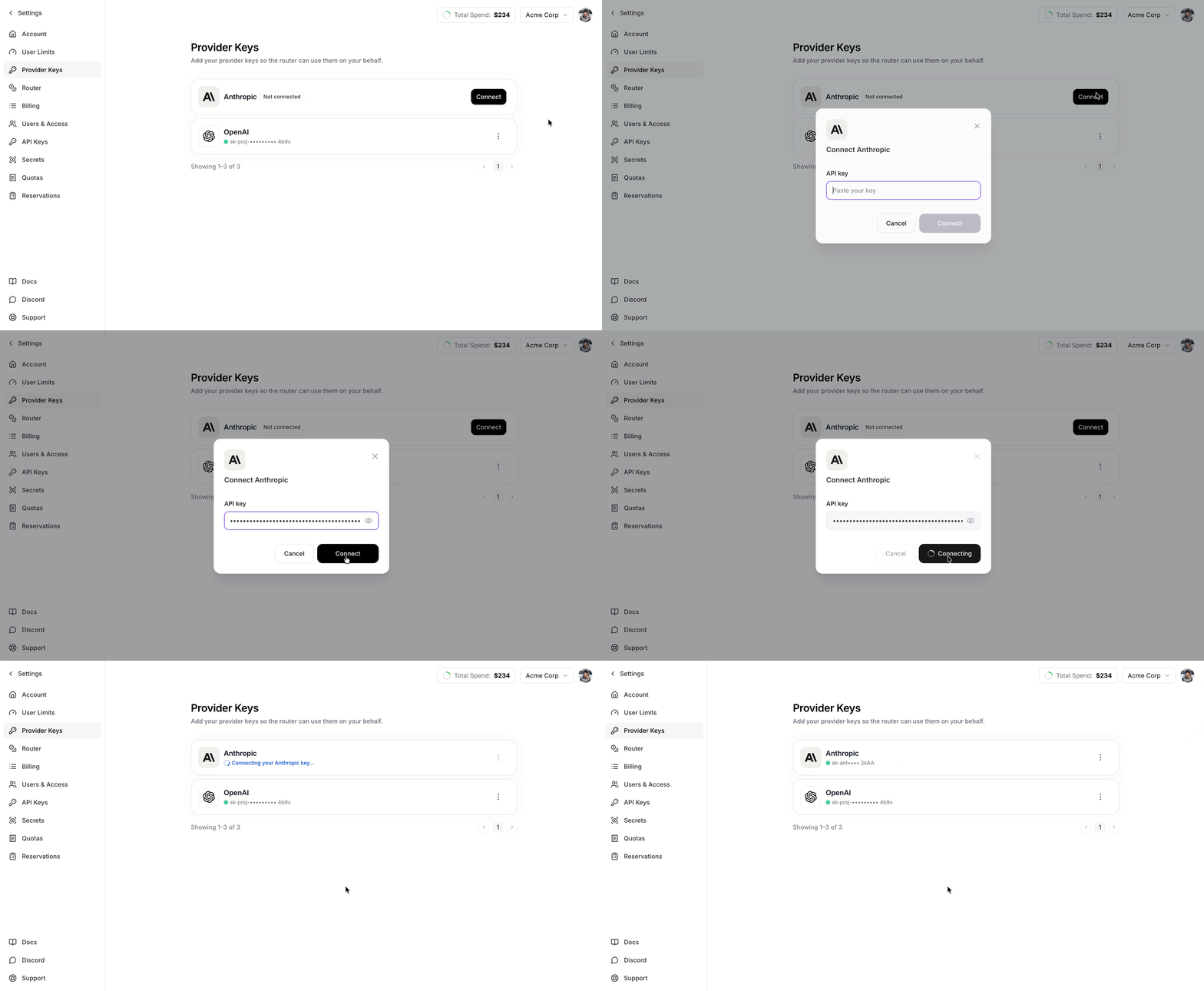
Connect a Provider Key from **Settings** without using a terminal.
Open **Settings** and go to **Provider Keys**.
Find the provider you want (Anthropic or OpenAI) and click **Connect**.
Paste your key and click **Connect**. You will see a confirmation once it is saved.
The provider then shows **Connected**. Requests typically begin using the key within 30–60 seconds of connecting it.
 ## Replace or remove a key
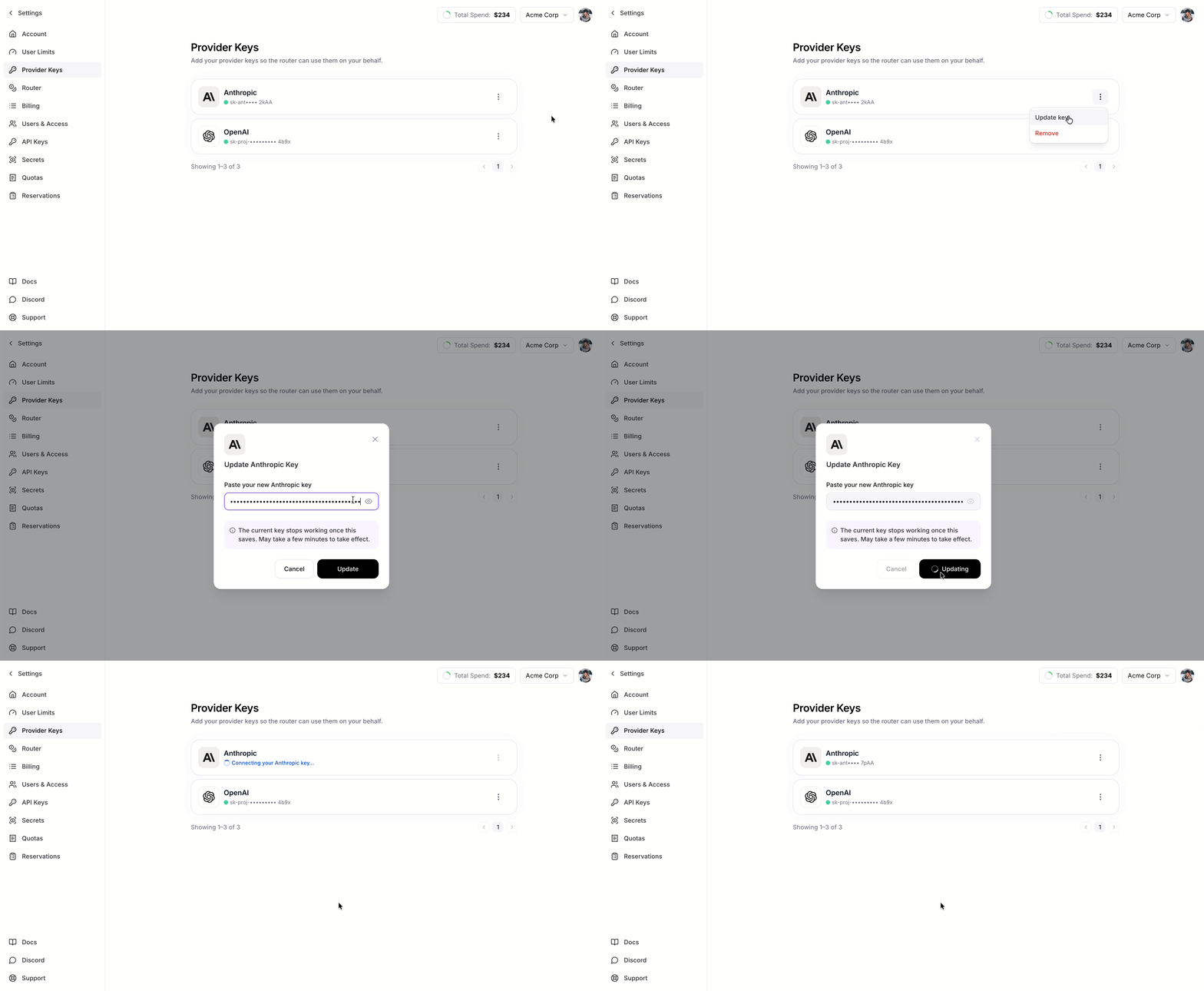
Open the menu on any connected provider to:
* **Replace:** swap in a new key value for that provider.
## Replace or remove a key
Open the menu on any connected provider to:
* **Replace:** swap in a new key value for that provider.
 * **Remove:** remove the key.
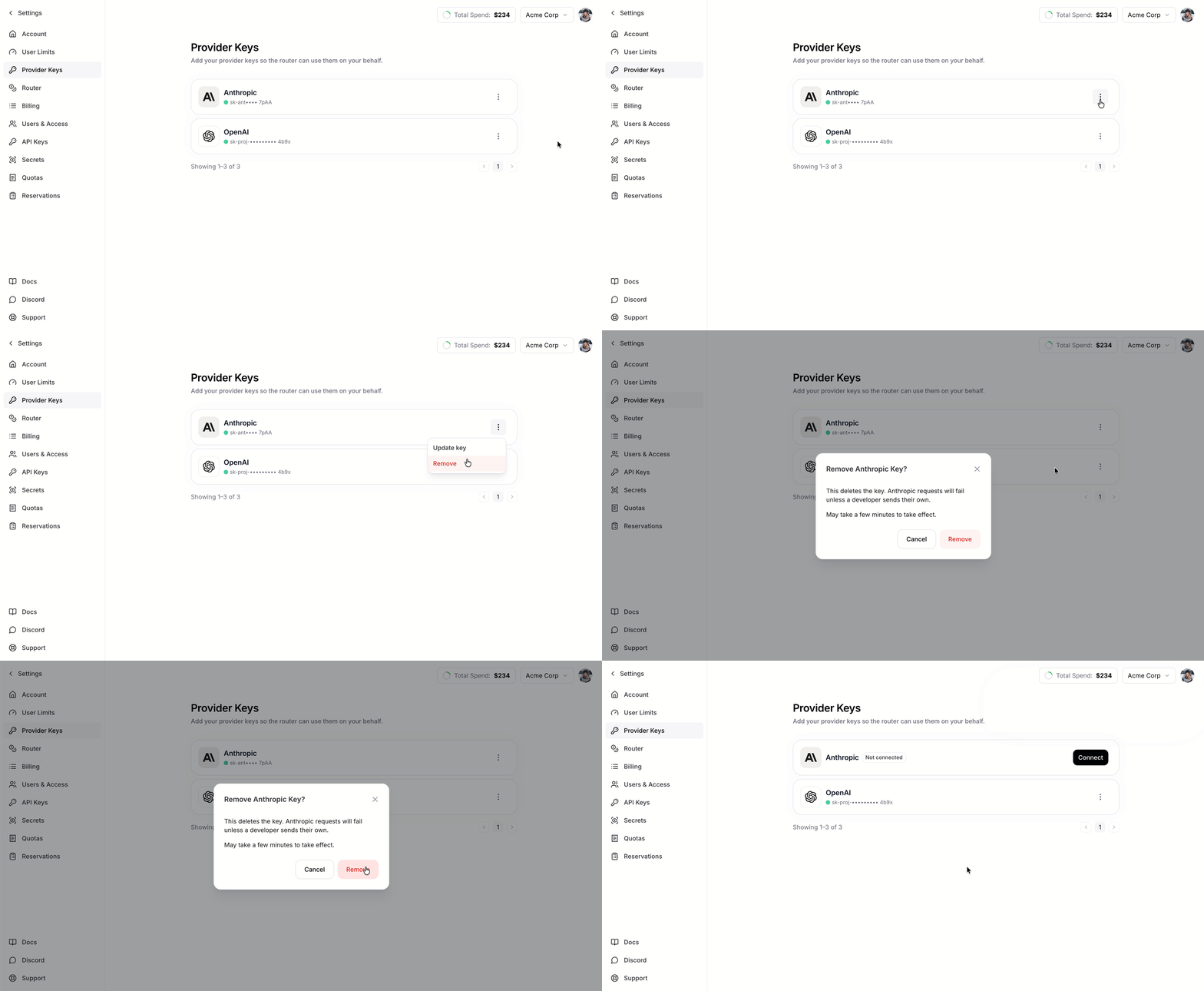 Changes typically propagate within 30–60 seconds. The provider may briefly show **Connecting** or **Disconnecting**.
## Manage keys with `firectl`
You can also connect, replace, remove, and inspect Provider Keys with `firectl`. Use `firectl provider-key` to manage stored keys and `firectl provider-key-binding` to choose which key is active for routing. `firectl firerouter-provider-key` is an alias.
The CLI can also stop using a key for routing without deleting it (`provider-key-binding unbind`). The key remains stored, so you can bind it again without re-uploading it.
First time using `firectl`? Follow [Getting started](/tools-sdks/firectl/firectl) to install it.
| Action | Step | Command |
| ---------------------- | ---------------------------------- | --------------------------------------------------------------------------------------------------- |
| **Connect or replace** | Upload a key | `firectl provider-key upload --provider-type PROVIDER --api-key $PROVIDER_KEY` / `--from-file PATH` |
| | Use the key | `firectl provider-key-binding bind PROVIDER KEY_ID` |
| **Check status** | Check stored keys | `firectl provider-key list` / `firectl provider-key list --provider-type PROVIDER` |
| | Check keys in routing | `firectl provider-key-binding list` or `firectl provider-key-binding get PROVIDER` |
| **Remove** | Stop using a key (but keep stored) | `firectl provider-key-binding unbind PROVIDER` |
| | Delete (needs to stop first) | `firectl provider-key delete KEY_ID` |
### Add or replace a key
`upload` stores a key but does not make it active for routing. Use `bind` to make it active. `--provider-type` is required and accepts `anthropic`, `openai`, `grok`, or `bedrock` where enabled.
For the quickest setup, pass an environment variable to `--api-key`. This keeps the value out of your shell history:
```bash wrap theme={null}
firectl provider-key upload --provider-type anthropic --api-key $ANTHROPIC_KEY
firectl provider-key-binding bind anthropic KEY_ID
```
You can also point at a file with `--from-file`. The file should hold only the raw key, with no JSON or quotes. `firectl` trims surrounding whitespace:
```bash wrap theme={null}
firectl provider-key upload --provider-type anthropic --from-file ./anthropic.key
```
On a shared or multi-user machine, prefer `--from-file`. The shell expands
`$ANTHROPIC_KEY` before `firectl` starts, so `--api-key` keeps the key out of
your shell history but still exposes it in the process list (`ps`) while the
command runs. `--from-file` passes only the path.
To rotate a provider, upload the new key and bind that key's ID. The old key stays stored until you delete it.
### Check status
```bash wrap theme={null}
# Keys you have uploaded (vault). One provider can have several.
firectl provider-key list
firectl provider-key list --provider-type openai
firectl provider-key list -o json
# Which key is live for each provider (Connected / Connecting / Disconnecting / Not connected)
firectl provider-key-binding list
firectl provider-key-binding list --provider-type openai
firectl provider-key-binding get openai
```
`provider-key list` shows each stored key's ID, provider, masked preview, and display name. `provider-key-binding list` and `get` show each provider's connection state and active `key_id`.
### Delete a key
Use the `key_id` from `upload` or `provider-key list`. If that key is live for the provider, unbind it first. Unbind stops routing from using it; the key stays stored until you delete it.
```bash wrap theme={null}
# If this key is currently in use
firectl provider-key-binding unbind openai
firectl provider-key delete KEY_ID
```
## Key behavior and security
* **An explicitly provided key on a request takes precedence.** If a request already includes a provider key, that key is used and the stored one is skipped.
* **Changes are not instant.** After you connect, replace, or remove a key, allow 30–60 seconds for the change to reach requests.
* **Your key stays private.** The full key is stored securely and never returned. The dashboard and API only show the provider, state, masked preview, and dates.
Changes typically propagate within 30–60 seconds. The provider may briefly show **Connecting** or **Disconnecting**.
## Manage keys with `firectl`
You can also connect, replace, remove, and inspect Provider Keys with `firectl`. Use `firectl provider-key` to manage stored keys and `firectl provider-key-binding` to choose which key is active for routing. `firectl firerouter-provider-key` is an alias.
The CLI can also stop using a key for routing without deleting it (`provider-key-binding unbind`). The key remains stored, so you can bind it again without re-uploading it.
First time using `firectl`? Follow [Getting started](/tools-sdks/firectl/firectl) to install it.
| Action | Step | Command |
| ---------------------- | ---------------------------------- | --------------------------------------------------------------------------------------------------- |
| **Connect or replace** | Upload a key | `firectl provider-key upload --provider-type PROVIDER --api-key $PROVIDER_KEY` / `--from-file PATH` |
| | Use the key | `firectl provider-key-binding bind PROVIDER KEY_ID` |
| **Check status** | Check stored keys | `firectl provider-key list` / `firectl provider-key list --provider-type PROVIDER` |
| | Check keys in routing | `firectl provider-key-binding list` or `firectl provider-key-binding get PROVIDER` |
| **Remove** | Stop using a key (but keep stored) | `firectl provider-key-binding unbind PROVIDER` |
| | Delete (needs to stop first) | `firectl provider-key delete KEY_ID` |
### Add or replace a key
`upload` stores a key but does not make it active for routing. Use `bind` to make it active. `--provider-type` is required and accepts `anthropic`, `openai`, `grok`, or `bedrock` where enabled.
For the quickest setup, pass an environment variable to `--api-key`. This keeps the value out of your shell history:
```bash wrap theme={null}
firectl provider-key upload --provider-type anthropic --api-key $ANTHROPIC_KEY
firectl provider-key-binding bind anthropic KEY_ID
```
You can also point at a file with `--from-file`. The file should hold only the raw key, with no JSON or quotes. `firectl` trims surrounding whitespace:
```bash wrap theme={null}
firectl provider-key upload --provider-type anthropic --from-file ./anthropic.key
```
On a shared or multi-user machine, prefer `--from-file`. The shell expands
`$ANTHROPIC_KEY` before `firectl` starts, so `--api-key` keeps the key out of
your shell history but still exposes it in the process list (`ps`) while the
command runs. `--from-file` passes only the path.
To rotate a provider, upload the new key and bind that key's ID. The old key stays stored until you delete it.
### Check status
```bash wrap theme={null}
# Keys you have uploaded (vault). One provider can have several.
firectl provider-key list
firectl provider-key list --provider-type openai
firectl provider-key list -o json
# Which key is live for each provider (Connected / Connecting / Disconnecting / Not connected)
firectl provider-key-binding list
firectl provider-key-binding list --provider-type openai
firectl provider-key-binding get openai
```
`provider-key list` shows each stored key's ID, provider, masked preview, and display name. `provider-key-binding list` and `get` show each provider's connection state and active `key_id`.
### Delete a key
Use the `key_id` from `upload` or `provider-key list`. If that key is live for the provider, unbind it first. Unbind stops routing from using it; the key stays stored until you delete it.
```bash wrap theme={null}
# If this key is currently in use
firectl provider-key-binding unbind openai
firectl provider-key delete KEY_ID
```
## Key behavior and security
* **An explicitly provided key on a request takes precedence.** If a request already includes a provider key, that key is used and the stored one is skipped.
* **Changes are not instant.** After you connect, replace, or remove a key, allow 30–60 seconds for the change to reach requests.
* **Your key stays private.** The full key is stored securely and never returned. The dashboard and API only show the provider, state, masked preview, and dates.