> ## Documentation Index
> Fetch the complete documentation index at: https://docs.fireworks.ai/llms.txt
> Use this file to discover all available pages before exploring further.
# Provider Keys (Bring Your Own)
> Bring your own keys so FireRouter can call those providers for you
Provider Keys lets your organization add its own frontier-provider API keys. Once a key is added, FireRouter uses it automatically for that provider, so your team never sends a provider key on each request. Fireworks stores the key encrypted at rest, never in plaintext, and never shows it in full again.
Provider Keys is an account-admin-only feature. You must be an account admin
to connect, replace, or remove a key, whether from the dashboard or through
`firectl`.
## How it works
* **Providers:** you can add a key for Anthropic and OpenAI.
* **One key per provider:** each provider connects a single key. Adding a new key for a provider replaces the old one.
Each provider is always in one of these states:
| State | What it means |
| ----------------- | ------------------------------------------------------------------------------------------------- |
| **Connected** | The key is on. FireRouter uses it for that provider. Can take up to a minute to take full effect. |
| **Connecting** | A new key is taking effect. Usually under a minute, sometimes a little longer. |
| **Disconnecting** | A key is being removed. Usually under a minute, sometimes a little longer. |
| **Not connected** | No key is set for this provider. |
## Add a key from the dashboard
The simplest way to add a key is in the dashboard. No terminal needed.
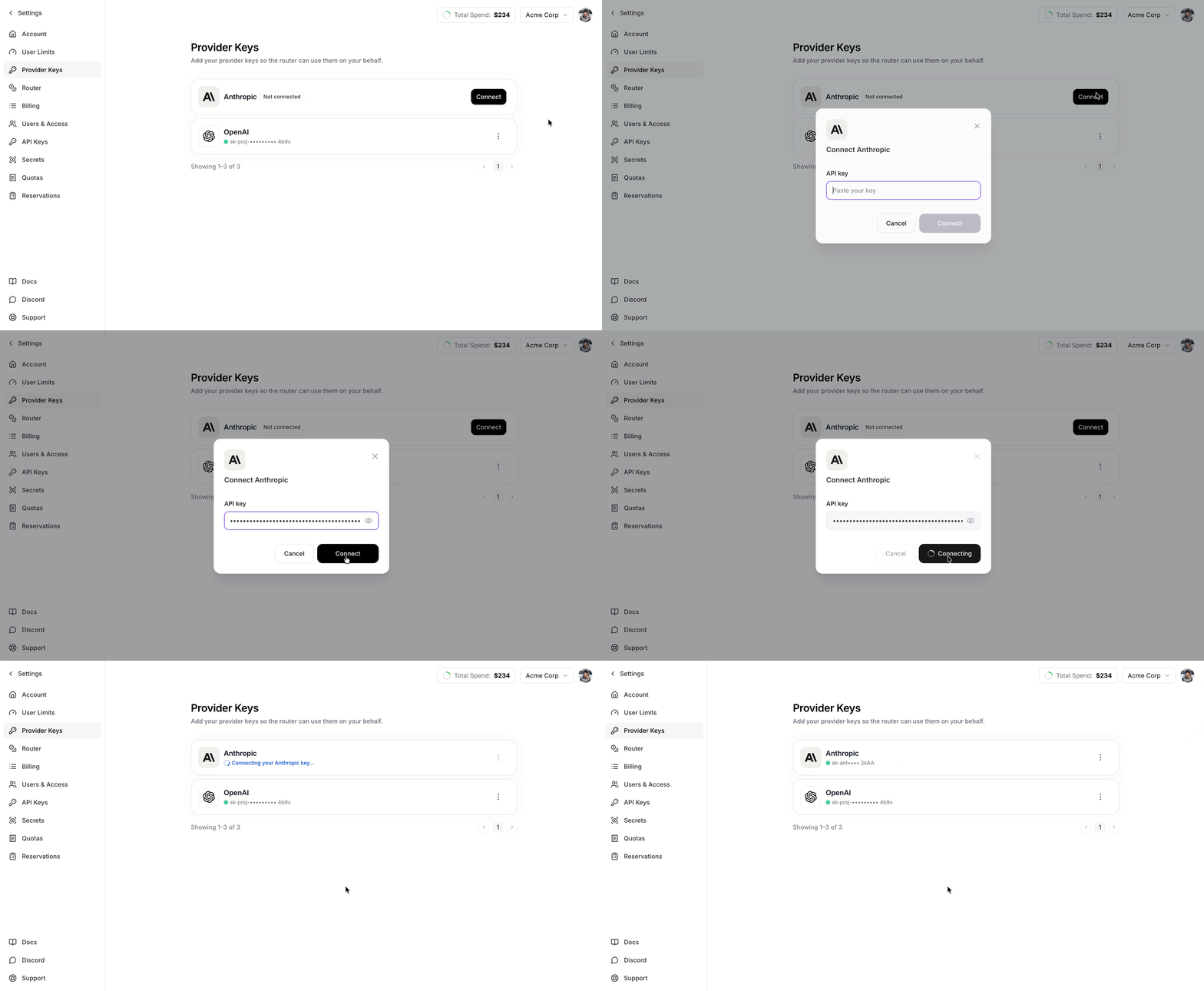
Open **Settings** and go to **Provider Keys**.
Find the provider you want (Anthropic or OpenAI) and click **Connect**.
Paste your key and click **Connect**. You will see a confirmation once it is saved.
The provider then shows **Connected**. It can take up to a minute to start routing through your key.
 ## Manage a key later
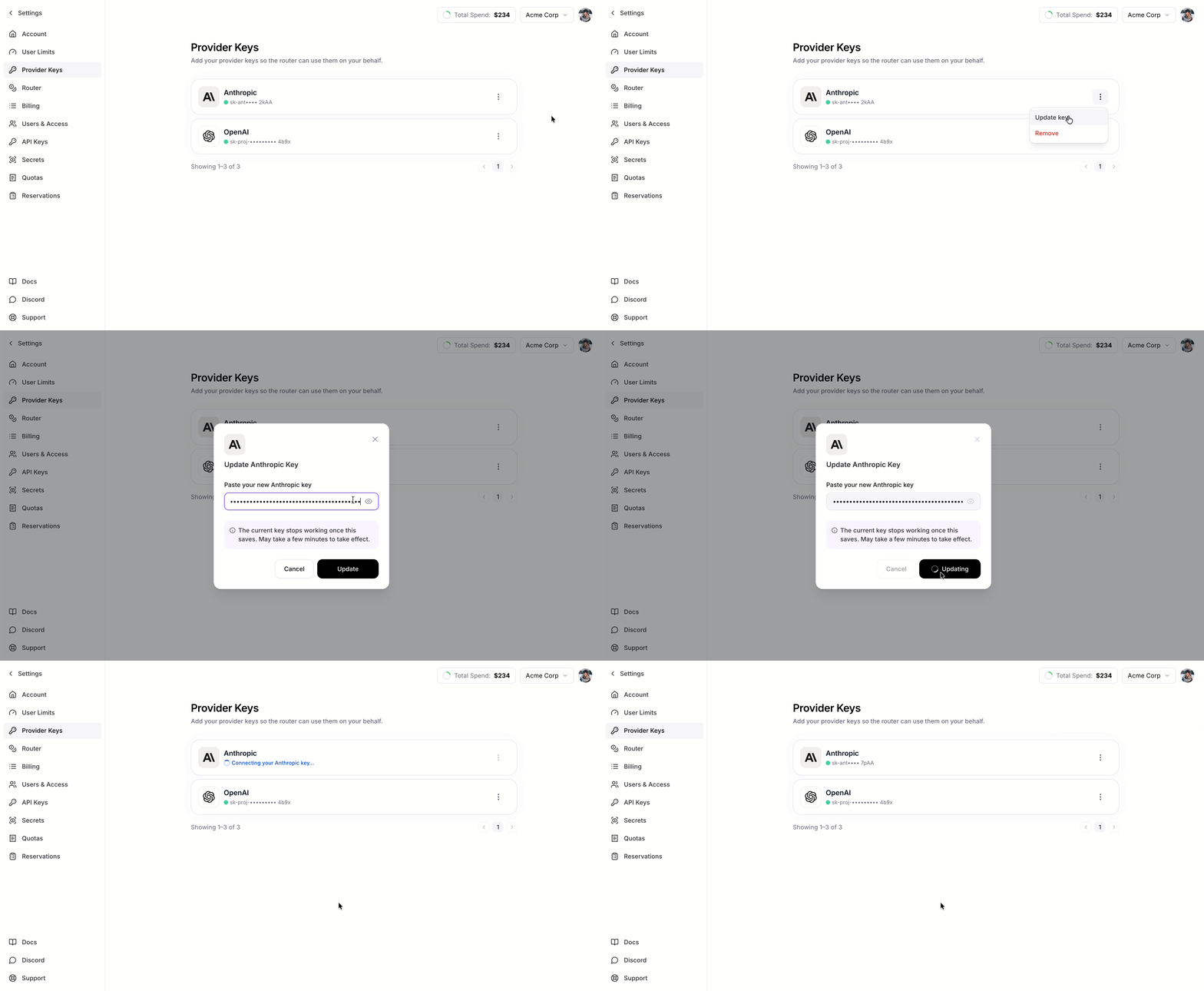
Open the menu on any connected provider to:
* **Replace:** swap in a new key value for that provider.
## Manage a key later
Open the menu on any connected provider to:
* **Replace:** swap in a new key value for that provider.
 * **Remove:** remove the key.
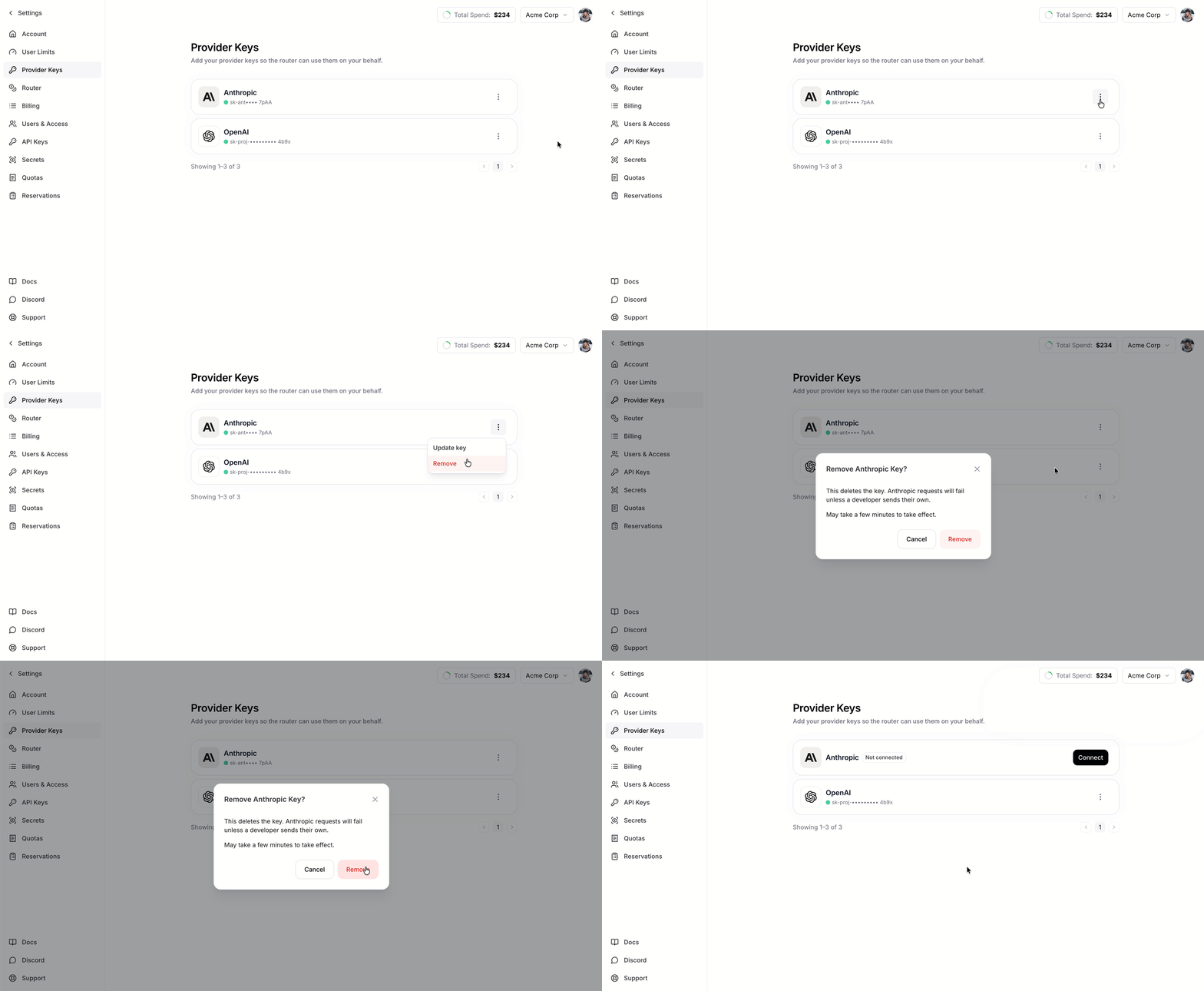 Changes can take up to a minute to take full effect. The provider may briefly show **Connecting** or **Disconnecting**. Wait until it finishes, then allow up to about a minute for requests to follow.
## Using `firectl`
Every action is also available through `firectl` if you prefer the terminal. Stored keys live under `firectl provider-key`, and routing (which key is live) lives under `firectl provider-key-binding`. `firectl firerouter-provider-key` works as an alias.
The CLI also covers one thing the dashboard does not: stopping a key without deleting it (`provider-key-binding unbind`). This keeps the key stored so you can start using it again later, without re-uploading.
First time using `firectl`? Install it by following the [firectl setup guide](/tools-sdks/firectl/firectl).
| Action | | Command |
| ---------------------- | ---------------------------------- | --------------------------------------------------------------------------------------------------- |
| **Connect or replace** | Add a key | `firectl provider-key upload --provider-type PROVIDER --api-key $PROVIDER_KEY` / `--from-file PATH` |
| | Use the key | `firectl provider-key-binding bind PROVIDER KEY_ID` |
| **Check status** | Check stored keys | `firectl provider-key list` / `firectl provider-key list --provider-type PROVIDER` |
| | Check keys in routing | `firectl provider-key-binding list` / `firectl provider-key-binding get PROVIDER` |
| **Remove** | Stop using a key (but keep stored) | `firectl provider-key-binding unbind PROVIDER` |
| | Delete (needs to stop first) | `firectl provider-key delete KEY_ID` |
### Add or replace a key
Upload **stores** a key, it does not turn it on. Point FireRouter at it with `bind`. `--provider-type` is required and accepts `anthropic` or `openai`.
The quickest way is `--api-key`, read from an environment variable so the value stays out of your shell history:
```bash theme={null}
firectl provider-key upload --provider-type anthropic --api-key $ANTHROPIC_KEY
firectl provider-key-binding bind anthropic KEY_ID
```
You can also point at a file with `--from-file`. The file should hold only the raw key, with no JSON, quotes, trailing newline, or other surrounding text:
```bash theme={null}
firectl provider-key upload --provider-type anthropic --from-file ./anthropic.key
```
On a shared or multi-user machine, prefer `--from-file`. The shell expands
`$ANTHROPIC_KEY` before `firectl` starts, so `--api-key` keeps the key out of
your shell history but still exposes it in the process list (`ps`) while the
command runs. `--from-file` passes only the path.
Running `upload` and `bind` again for the same provider replaces the value in place.
### Check status
```bash theme={null}
# Keys you have uploaded (vault). One provider can have several.
firectl provider-key list
firectl provider-key list --provider-type openai
firectl provider-key list -o json
# Which key is live for each provider (Connected / Connecting / Disconnecting / Disconnected)
firectl provider-key-binding list
firectl provider-key-binding list --provider-type openai
firectl provider-key-binding get openai
```
The output shows the key ID, provider, state, and masked preview. `provider-key list` shows the key ID, provider, masked preview, and display name. `provider-key-binding list` / `get` is where you see whether a provider is connected and which `key_id` is in use.
### Delete a key
Use the `key_id` from `upload` or `provider-key list`. If that key is the live one for the provider, unbind it first. Unbind alone only stops FireRouter from using it; the key stays stored until you delete it.
```bash theme={null}
# If this key is currently in use
firectl provider-key-binding unbind openai
firectl provider-key delete KEY_ID
```
## Additional info
* **An explicitly provided key on a request takes precedence.** If a request already includes a provider key, that key is used and the stored one is skipped.
* **Changes are not instant.** After you connect, replace, or remove a key, allow up to about a minute before the change applies to requests. The provider may briefly show **Connecting** or **Disconnecting** while it takes effect.
* **Your key stays private.** The full key is stored securely and never returned. The dashboard and API only show the provider, state, masked preview, and dates.
Changes can take up to a minute to take full effect. The provider may briefly show **Connecting** or **Disconnecting**. Wait until it finishes, then allow up to about a minute for requests to follow.
## Using `firectl`
Every action is also available through `firectl` if you prefer the terminal. Stored keys live under `firectl provider-key`, and routing (which key is live) lives under `firectl provider-key-binding`. `firectl firerouter-provider-key` works as an alias.
The CLI also covers one thing the dashboard does not: stopping a key without deleting it (`provider-key-binding unbind`). This keeps the key stored so you can start using it again later, without re-uploading.
First time using `firectl`? Install it by following the [firectl setup guide](/tools-sdks/firectl/firectl).
| Action | | Command |
| ---------------------- | ---------------------------------- | --------------------------------------------------------------------------------------------------- |
| **Connect or replace** | Add a key | `firectl provider-key upload --provider-type PROVIDER --api-key $PROVIDER_KEY` / `--from-file PATH` |
| | Use the key | `firectl provider-key-binding bind PROVIDER KEY_ID` |
| **Check status** | Check stored keys | `firectl provider-key list` / `firectl provider-key list --provider-type PROVIDER` |
| | Check keys in routing | `firectl provider-key-binding list` / `firectl provider-key-binding get PROVIDER` |
| **Remove** | Stop using a key (but keep stored) | `firectl provider-key-binding unbind PROVIDER` |
| | Delete (needs to stop first) | `firectl provider-key delete KEY_ID` |
### Add or replace a key
Upload **stores** a key, it does not turn it on. Point FireRouter at it with `bind`. `--provider-type` is required and accepts `anthropic` or `openai`.
The quickest way is `--api-key`, read from an environment variable so the value stays out of your shell history:
```bash theme={null}
firectl provider-key upload --provider-type anthropic --api-key $ANTHROPIC_KEY
firectl provider-key-binding bind anthropic KEY_ID
```
You can also point at a file with `--from-file`. The file should hold only the raw key, with no JSON, quotes, trailing newline, or other surrounding text:
```bash theme={null}
firectl provider-key upload --provider-type anthropic --from-file ./anthropic.key
```
On a shared or multi-user machine, prefer `--from-file`. The shell expands
`$ANTHROPIC_KEY` before `firectl` starts, so `--api-key` keeps the key out of
your shell history but still exposes it in the process list (`ps`) while the
command runs. `--from-file` passes only the path.
Running `upload` and `bind` again for the same provider replaces the value in place.
### Check status
```bash theme={null}
# Keys you have uploaded (vault). One provider can have several.
firectl provider-key list
firectl provider-key list --provider-type openai
firectl provider-key list -o json
# Which key is live for each provider (Connected / Connecting / Disconnecting / Disconnected)
firectl provider-key-binding list
firectl provider-key-binding list --provider-type openai
firectl provider-key-binding get openai
```
The output shows the key ID, provider, state, and masked preview. `provider-key list` shows the key ID, provider, masked preview, and display name. `provider-key-binding list` / `get` is where you see whether a provider is connected and which `key_id` is in use.
### Delete a key
Use the `key_id` from `upload` or `provider-key list`. If that key is the live one for the provider, unbind it first. Unbind alone only stops FireRouter from using it; the key stays stored until you delete it.
```bash theme={null}
# If this key is currently in use
firectl provider-key-binding unbind openai
firectl provider-key delete KEY_ID
```
## Additional info
* **An explicitly provided key on a request takes precedence.** If a request already includes a provider key, that key is used and the stored one is skipped.
* **Changes are not instant.** After you connect, replace, or remove a key, allow up to about a minute before the change applies to requests. The provider may briefly show **Connecting** or **Disconnecting** while it takes effect.
* **Your key stays private.** The full key is stored securely and never returned. The dashboard and API only show the provider, state, masked preview, and dates.