> ## Documentation Index
> Fetch the complete documentation index at: https://docs.fireworks.ai/llms.txt
> Use this file to discover all available pages before exploring further.
# Direct Preference Optimization
Direct Preference Optimization (DPO) fine-tunes models by training them on pairs of preferred and non-preferred responses to the same prompt. This teaches the model to generate more desirable outputs while reducing unwanted behaviors.
**Use DPO when:**
* Aligning model outputs with brand voice, tone, or style guidelines
* Reducing hallucinations or incorrect reasoning patterns
* Improving response quality where there's no single "correct" answer
* Teaching models to follow specific formatting or structural preferences
## Fine-tuning with DPO
Datasets must adhere strictly to the JSONL format, where each line represents a complete JSON-formatted training example.
**Minimum Requirements:**
* **Minimum examples needed:** 3
* **Maximum examples:** Up to 3 million examples per dataset
* **File format:** JSONL (each line is a valid JSON object)
* **Dataset Schema:** Each training sample must include the following fields:
* An `input` field containing a `messages` array, where each message is an object with two fields:
* `role`: one of `system`, `user`, or `assistant`
* `content`: a string representing the message content
* A `preferred_output` field containing an assistant message with an ideal response
* A `non_preferred_output` field containing an assistant message with a suboptimal response
Here’s an example conversation dataset (one training example):
```json einstein_dpo.jsonl theme={null}
{
"input": {
"messages": [
{
"role": "user",
"content": "What is Einstein famous for?"
}
],
"tools": []
},
"preferred_output": [
{
"role": "assistant",
"content": "Einstein is renowned for his theory of relativity, especially the equation E=mc²."
}
],
"non_preferred_output": [
{
"role": "assistant",
"content": "He was a famous scientist."
}
]
}
```
We currently only support one-turn conversations for each example, where the preferred and non-preferred messages need to be the last assistant message.
Save this dataset as jsonl file locally, for example `einstein_dpo.jsonl`.
There are a couple ways to upload the dataset to Fireworks platform for fine tuning: `firectl`, `Restful API` , `builder SDK` or `UI`.
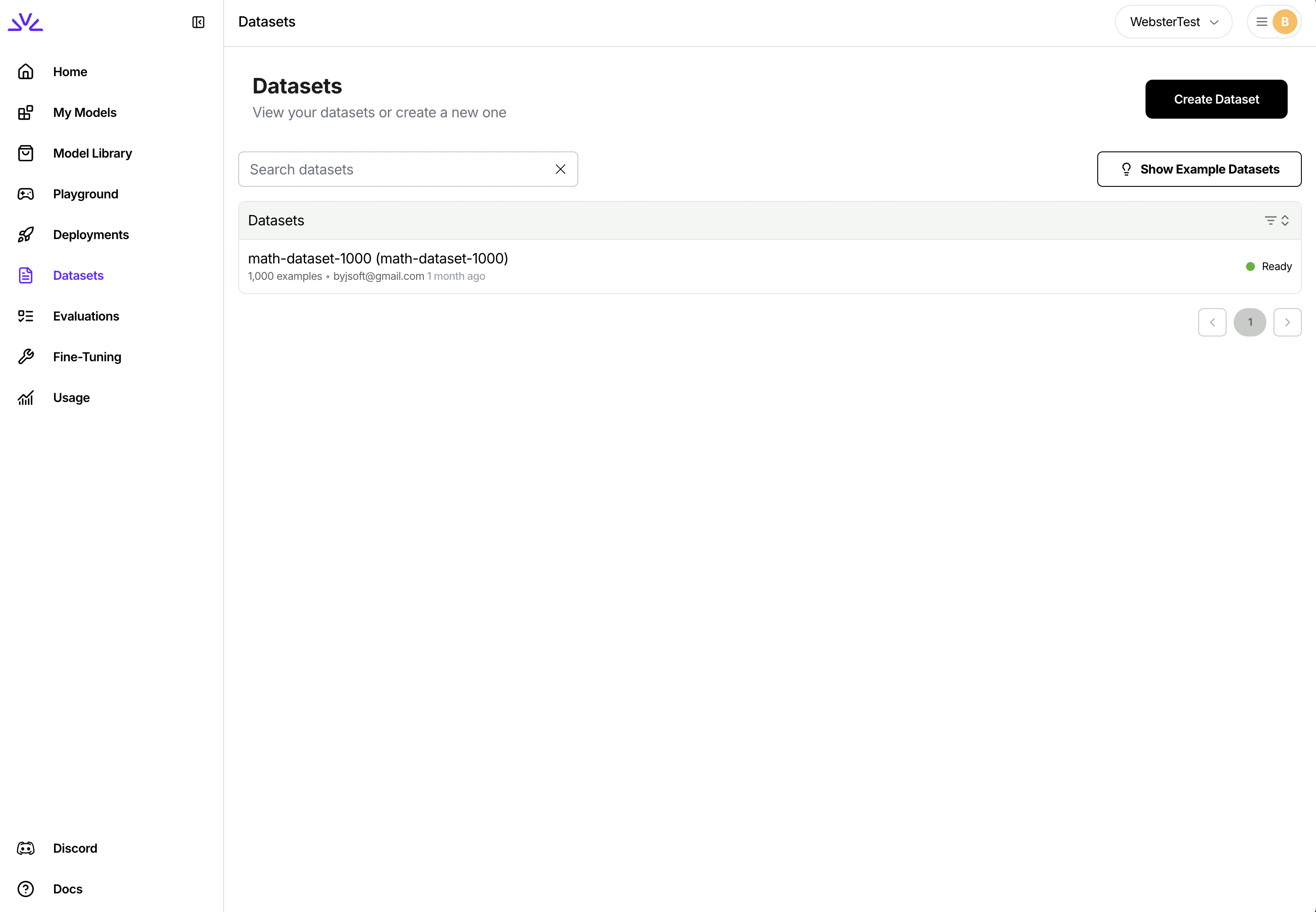
* You can simply navigate to the dataset tab, click `Create Dataset` and follow the wizard.
 * Upload dataset using `firectl`
```bash theme={null}
firectl dataset create /path/to/file.jsonl
```
You need to make two separate HTTP requests. One for creating the dataset entry and one for uploading the dataset. Full reference here: [Create dataset](/api-reference/create-dataset). Note that the `exampleCount` parameter needs to be provided by the client.
```jsx theme={null}
// Create Dataset Entry
const createDatasetPayload = {
datasetId: "trader-poe-sample-data",
dataset: { userUploaded: {} }
// Additional params such as exampleCount
};
const urlCreateDataset = `${BASE_URL}/datasets`;
const response = await fetch(urlCreateDataset, {
method: "POST",
headers: HEADERS_WITH_CONTENT_TYPE,
body: JSON.stringify(createDatasetPayload)
});
```
```jsx theme={null}
// Upload JSONL file
const urlUpload = `${BASE_URL}/datasets/${DATASET_ID}:upload`;
const files = new FormData();
files.append("file", localFileInput.files[0]);
const uploadResponse = await fetch(urlUpload, {
method: "POST",
headers: HEADERS,
body: files
});
```
While all of the above approaches should work, `UI` is more suitable for smaller datasets `< 500MB` while `firectl` might work better for bigger datasets.
Ensure the dataset ID conforms to the [resource id restrictions](/getting-started/concepts#resource-names-and-ids).
```bash theme={null}
firectl dpoj create \
--base-model accounts/account-id/models/base-model-id \
--dataset accounts/my-account-id/datasets/my-dataset-id \
--output-model new-model-id
```
For our example, we might run the following command:
```bash theme={null}
firectl dpoj create \
--base-model accounts/fireworks/models/llama-v3p1-8b-instruct \
--dataset accounts/pyroworks/datasets/einstein-dpo \
--output-model einstein-dpo-model
```
to fine-tune a [Llama 3.1 8b Instruct](https://fireworks.ai/models/fireworks/llama-v3p1-8b-instruct) model with our Einstein dataset.
```bash theme={null}
firectl dpoj get dpo-job-id
```
Once the job is complete, the `STATE` will be set to `JOB_STATE_COMPLETED`, and the fine-tuned model can be deployed.
Once training completes, you can create a deployment to interact with the fine-tuned model. Refer to [deploying a fine-tuned model](/fine-tuning/fine-tuning-models#deploying-a-fine-tuned-model) for more details.
## Next Steps
Explore other fine-tuning methods to improve model output for different use cases.
Train models on input-output examples to improve task-specific performance.
Optimize models using AI feedback for complex reasoning and decision-making.
Fine-tune vision-language models to understand both images and text.
* Upload dataset using `firectl`
```bash theme={null}
firectl dataset create /path/to/file.jsonl
```
You need to make two separate HTTP requests. One for creating the dataset entry and one for uploading the dataset. Full reference here: [Create dataset](/api-reference/create-dataset). Note that the `exampleCount` parameter needs to be provided by the client.
```jsx theme={null}
// Create Dataset Entry
const createDatasetPayload = {
datasetId: "trader-poe-sample-data",
dataset: { userUploaded: {} }
// Additional params such as exampleCount
};
const urlCreateDataset = `${BASE_URL}/datasets`;
const response = await fetch(urlCreateDataset, {
method: "POST",
headers: HEADERS_WITH_CONTENT_TYPE,
body: JSON.stringify(createDatasetPayload)
});
```
```jsx theme={null}
// Upload JSONL file
const urlUpload = `${BASE_URL}/datasets/${DATASET_ID}:upload`;
const files = new FormData();
files.append("file", localFileInput.files[0]);
const uploadResponse = await fetch(urlUpload, {
method: "POST",
headers: HEADERS,
body: files
});
```
While all of the above approaches should work, `UI` is more suitable for smaller datasets `< 500MB` while `firectl` might work better for bigger datasets.
Ensure the dataset ID conforms to the [resource id restrictions](/getting-started/concepts#resource-names-and-ids).
```bash theme={null}
firectl dpoj create \
--base-model accounts/account-id/models/base-model-id \
--dataset accounts/my-account-id/datasets/my-dataset-id \
--output-model new-model-id
```
For our example, we might run the following command:
```bash theme={null}
firectl dpoj create \
--base-model accounts/fireworks/models/llama-v3p1-8b-instruct \
--dataset accounts/pyroworks/datasets/einstein-dpo \
--output-model einstein-dpo-model
```
to fine-tune a [Llama 3.1 8b Instruct](https://fireworks.ai/models/fireworks/llama-v3p1-8b-instruct) model with our Einstein dataset.
```bash theme={null}
firectl dpoj get dpo-job-id
```
Once the job is complete, the `STATE` will be set to `JOB_STATE_COMPLETED`, and the fine-tuned model can be deployed.
Once training completes, you can create a deployment to interact with the fine-tuned model. Refer to [deploying a fine-tuned model](/fine-tuning/fine-tuning-models#deploying-a-fine-tuned-model) for more details.
## Next Steps
Explore other fine-tuning methods to improve model output for different use cases.
Train models on input-output examples to improve task-specific performance.
Optimize models using AI feedback for complex reasoning and decision-making.
Fine-tune vision-language models to understand both images and text.