> ## Documentation Index
> Fetch the complete documentation index at: https://docs.fireworks.ai/llms.txt
> Use this file to discover all available pages before exploring further.
# GitHub Copilot
> Use Fireworks AI models in GitHub Copilot Chat via a custom endpoint
Use [Fireworks AI](https://fireworks.ai) models in **GitHub Copilot Chat** by adding a **Custom Endpoint** in VS Code (or other hosts that support Copilot custom models).
Fireworks offers **200+ models**—copy the model `id` and token limits from the [Model Library](https://app.fireworks.ai/models). Use endpoint URL `https://api.fireworks.ai/inference/v1`.
## Prerequisites
* A Fireworks [API key](https://app.fireworks.ai/settings/users/api-keys)
* GitHub Copilot with access to **Other Models** and **Custom Endpoint** (availability depends on your Copilot plan)
## Setup
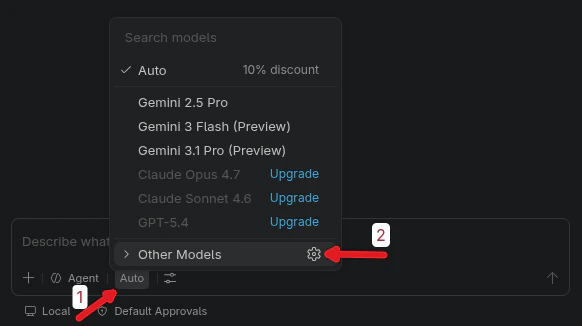
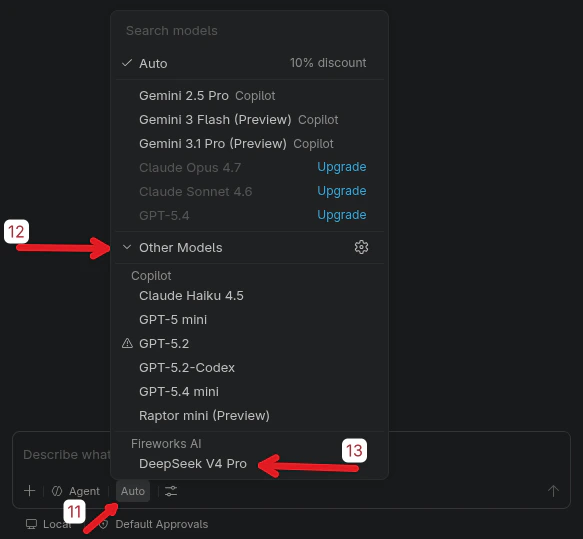
In Copilot Chat, click the active model name at the bottom (often **Auto**). In the menu, click the gear icon next to **Other Models**.
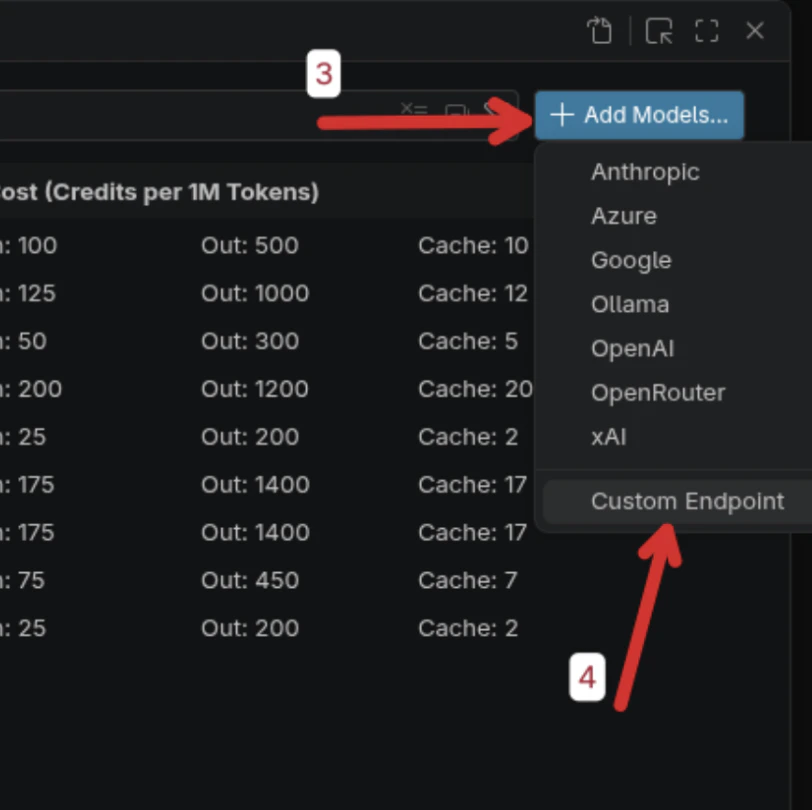
 In **Language Models**, click **+ Add Models...** in the top right, then choose **Custom Endpoint**.
 Enter **Fireworks AI** as the group name and press Enter.
 Paste your Fireworks API key (hidden by default) and press Enter to confirm.
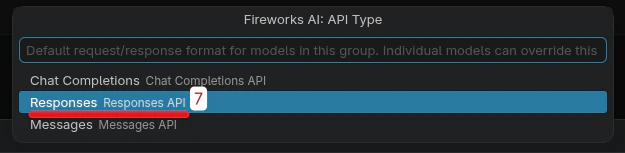
 When asked for the default request/response format, select **Responses API**.
 A configuration file opens. **Do not change** the auto-generated header at the top—only fill in the model template below it.
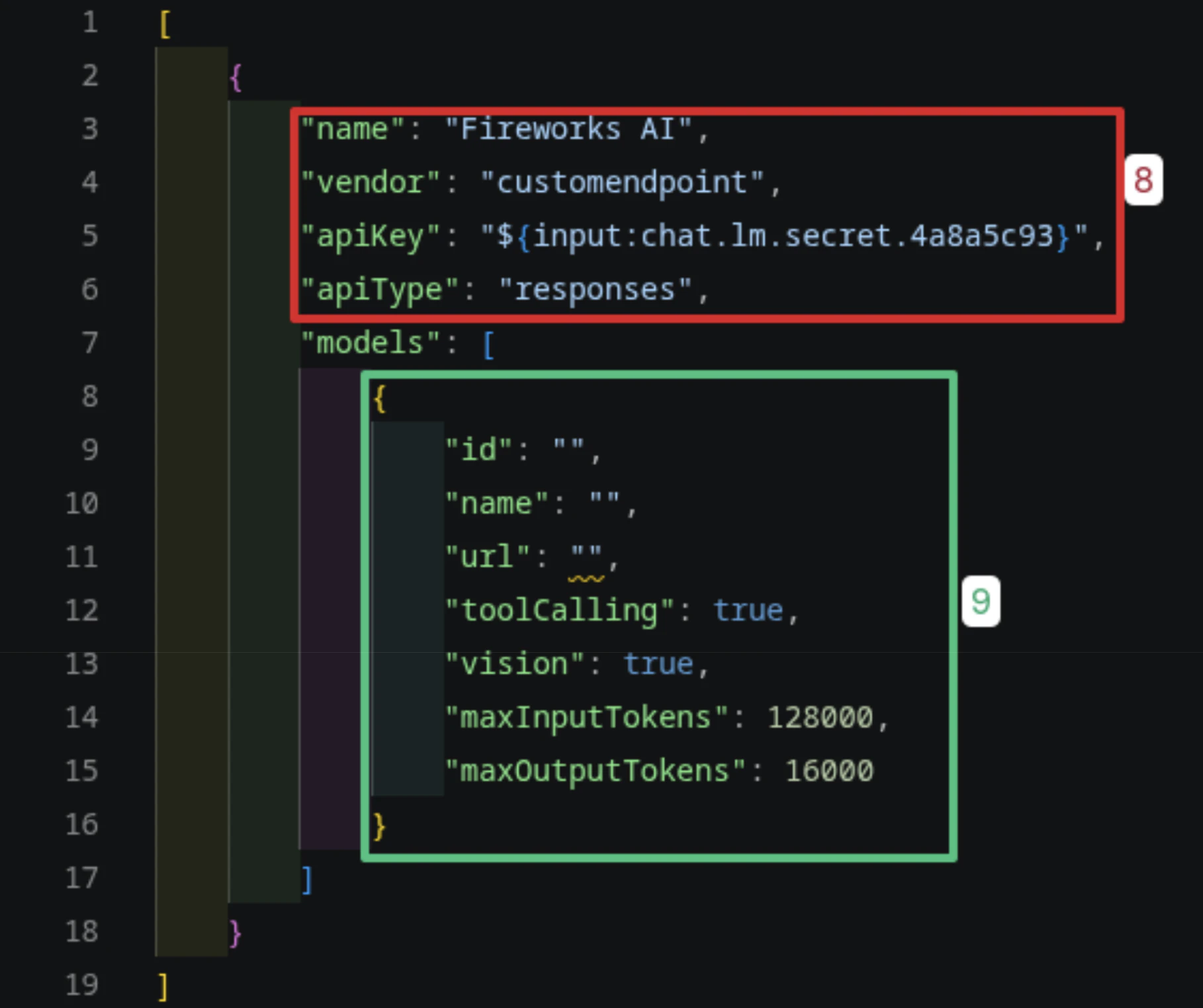 Fill in your model fields, then save (**Ctrl+S** on Windows/Linux, **Cmd+S** on macOS) and close the settings modal.
Example for [DeepSeek V4 Pro](https://app.fireworks.ai/models/fireworks/deepseek-v4-pro):
| Field | Value |
| ------------------- | ------------------------------------------- |
| **id** | `accounts/fireworks/models/deepseek-v4-pro` |
| **name** | `DeepSeek V4 Pro` |
| **url** | `https://api.fireworks.ai/inference/v1` |
| **toolCalling** | `true` |
| **vision** | `false` |
| **maxInputTokens** | `1000000` |
| **maxOutputTokens** | `384000` |
Fill in your model fields, then save (**Ctrl+S** on Windows/Linux, **Cmd+S** on macOS) and close the settings modal.
Example for [DeepSeek V4 Pro](https://app.fireworks.ai/models/fireworks/deepseek-v4-pro):
| Field | Value |
| ------------------- | ------------------------------------------- |
| **id** | `accounts/fireworks/models/deepseek-v4-pro` |
| **name** | `DeepSeek V4 Pro` |
| **url** | `https://api.fireworks.ai/inference/v1` |
| **toolCalling** | `true` |
| **vision** | `false` |
| **maxInputTokens** | `1000000` |
| **maxOutputTokens** | `384000` |
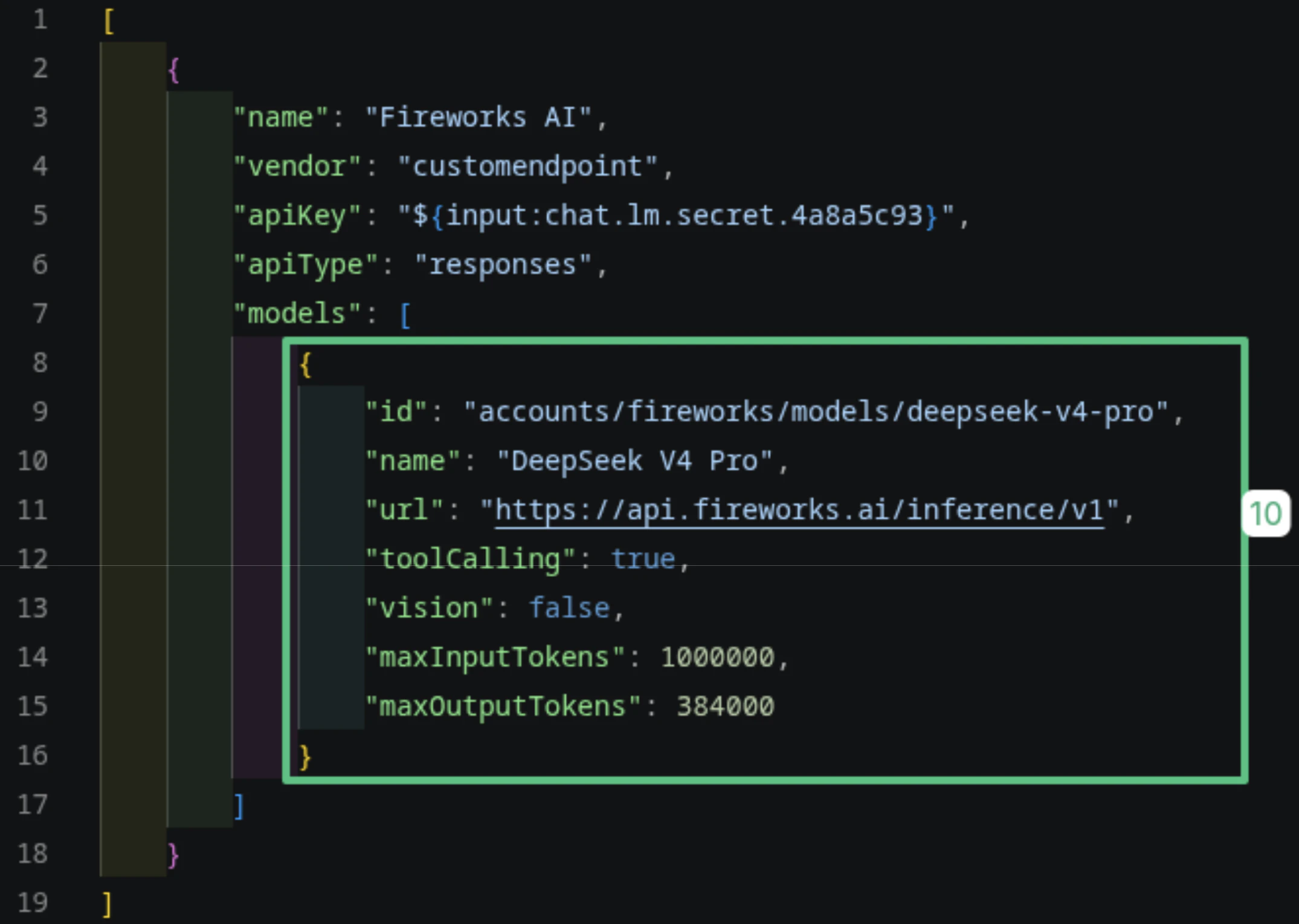 Use the exact model `id` and token limits from the model page in the [Model Library](https://app.fireworks.ai/models). Values differ per model.
Return to Copilot Chat, open the model picker (**Auto**), expand **Other Models**, and choose your model under **Fireworks AI**.
Use the exact model `id` and token limits from the model page in the [Model Library](https://app.fireworks.ai/models). Values differ per model.
Return to Copilot Chat, open the model picker (**Auto**), expand **Other Models**, and choose your model under **Fireworks AI**.
 ## Related
* [Claude Code](/ecosystem/integrations/claude-code) — use Fireworks models with Claude Code
* [Development Setup with Fireworks Docs MCP](/ecosystem/integrations/development-setup) — add Fireworks docs to your coding agent
## Related
* [Claude Code](/ecosystem/integrations/claude-code) — use Fireworks models with Claude Code
* [Development Setup with Fireworks Docs MCP](/ecosystem/integrations/development-setup) — add Fireworks docs to your coding agent